After spending the last 5 years working in a Linux/Unix environment, this experience allowed me to become familiar with command line interpreters (otherwise called the terminal) and their inner workings. I immediately extremely appreciated this incredible tool, which, if I summarize, can accomplish all the tasks that we perform with our system's graphical interface (GUI in English). However, the terminal remains faster and more reliable, where the user interfaces of our operating systems are constantly undergoing multiple improvements over time in order to offer a better experience and more control. However, this observation requires the user to relearn how the system works. Now, the user experience at the terminal level is so fast and so simple that, in my opinion, it does not suffer from any comparison. Why? Because this simplicity has hardly changed since time.
At least that was what I thought 5 years ago. In this article, I'll explain why I've changed my mind since then.
By Simon PROVOST, Data Engineer at LittleBigCode
During a typical workday, I typically use the following interfaces at least once:
► Integrated development environment (EDI or IDE in English);
► A web browser;
► A mailbox;
► Any design software;
► An agenda;
► A daily task planner.
An average person would usually open them by clicking the mouse at least six times a day, using the list below. Thanks to a single set of commands, I then increase the productivity of using my computer by reducing the number of mouse clicks to zero, and by reducing the search time by 50% in the majority of the applications mentioned above.

What is an order palette?
The command palette is nothing more than a practical use that can be accessed through a combination of keys on your keyboard. This very useful tool allows access to all of the media concerned, which, in the case of a computer, could include your documents, software, and any other content.
The operation is quite simple because the search algorithm used is powerful enough to allow you to quickly obtain the information you want. No more wasting time looking for a particular document. It is this ability to search for information that is the strength of this range of commands. It has the same ease of use as the command line mentioned above, but in a GUI environment. That's why this tool will revolutionize most of the software on your computer or even integrated into the websites you use every day.
How did I become a fervent promoter of the order range?
Jetbrains:
I became an avid supporter of pallet orders just two years ago after becoming a confirmed user of Jetbrains Inc. products. So I started using the command palette from Jetbrains and it immediately proved to be effective.
The reason:I no longer use the file explorer on the left side of the software, as the search tool in the command palette is more than enough to find a file, create a new one or perform any other desired action. Thus, this range of commands not only allows the user to search for files, but it also includes various additional options that greatly facilitate the daily life of an engineer (for example: using a version control system, changing the visual theme, launching a docker script, etc.).
Apple:
After my experience with Jetbrains intelligent command palette, I then became interested in these types of utility applications. And in particular to Apple's surprising Spotlight search.
Key benefits:It makes it possible to avoid using the touchpad in order to open a new software, to search for a document by name or to find a document lost in the mass of files stored on the computer.
GitHub:
Finally, since GitHub generally releases beta features for its users, when I discovered that a range of commands was available, my first reaction was to say, “God, this is going to be crazy.” So after this discovery, I decided to use it. Thus, I quickly observed that I could switch between different projects in my profile in two simple actions, while manually, it would require 3 to 4 times more actions and time. This is how such a minor feature makes it possible to increase our efficiency when surfing on GitHub.
A brief overview of my use of order pallets
Now that I've explained the main principles behind command palettes and how I discovered them, here are some practical examples of my daily use:
Code reviews that are linked to a specific commit fix the additional change to that commit (according to Commit-hash sound). They ensure that no clutter is introduced into the commit range of a new branch. Additionally, these fixups need to be applied to their target; you can find instructions on how to do this in the problem subsection in example 2.
Jetbrains with the Jetbrains command palette
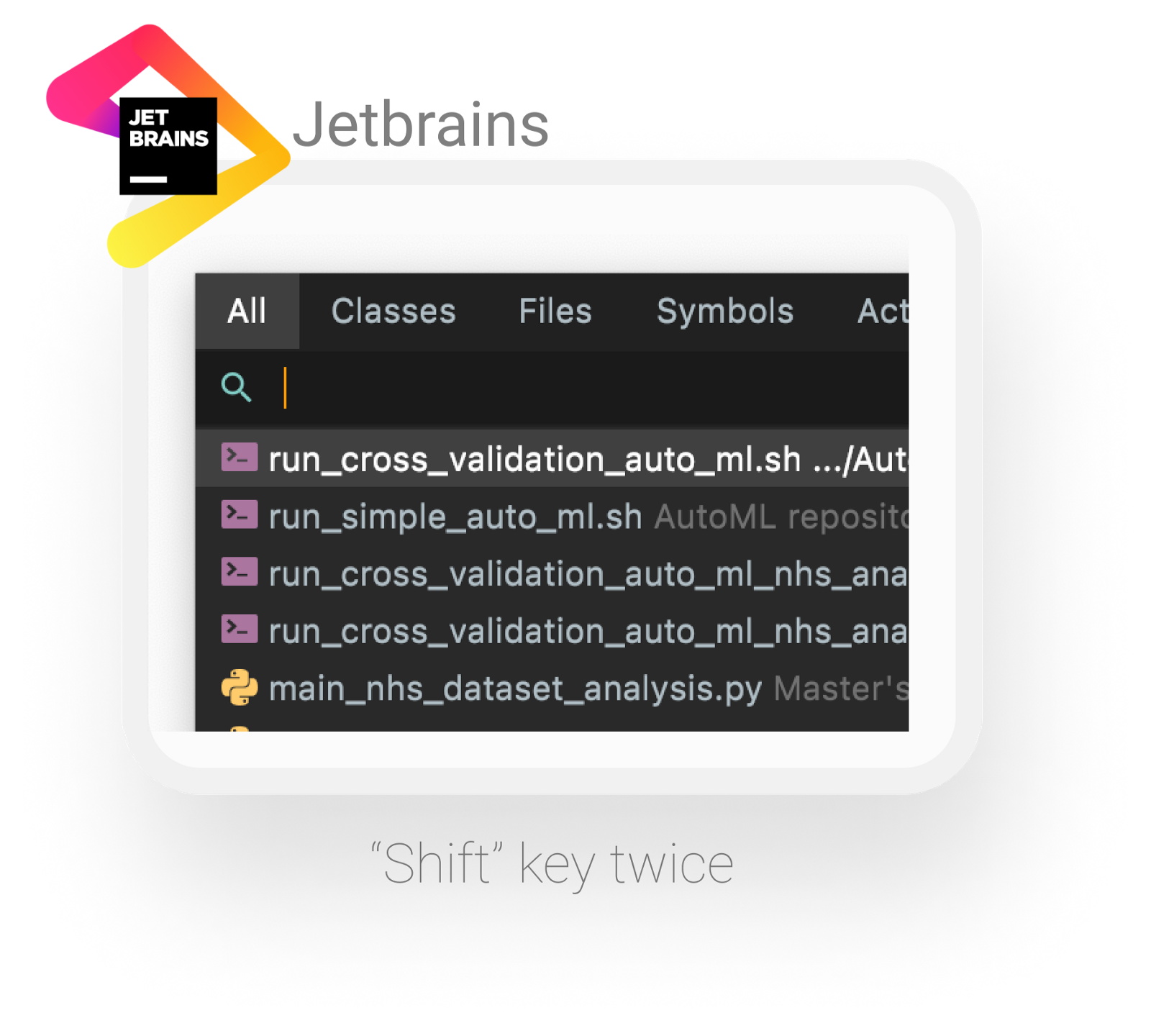
You can find a range of commands available in each Jetbrains solution (Pycharm/Webstorm/Datagrip). To trigger the tool, simply press the Shift key on your keyboard twice. Now let's look at two very practical uses:
1. Search for a specific file
When looking for a file, for example following a Flake8 error in Python, the palette command allows you to reach the file in question in a simple action and correct/modify the need there. Below is an illustration of how to search for a file by name:

2. Git Branch Managements
Another tip that I often use: commands linked to Git via the Jetbrains command palette. The key: I can interchange branches without using the command line or the graphical interface. Indeed, I use the Git VSC tool integrated into the Jetbrains command palette. Below is an illustration of changing a Git branch using a simple action:

GitHub with the GitHub command palette
You can access the GitHub command palette from each GitHub page. It's a bit like your personal assistant, always there to help you get to a specific location or find a specific file. However, you can access the command palette by pressing the following key combination: Command + K. Now let's look at two very practical uses below:

1. Going from project to project:
Intending to use the palette command to navigate a particular project from my personal space on GitHub, I am using the shortcut. The only thing I need to do is type the project name + the keyboard key Entree.
So, GitHub's smart search algorithm takes me to the desired repository instantly. Below is an illustration of a current location change to a GitHub project:

2. Conduct a global search
Here are some other cool tips that I've enjoyed using since launching the Command Palette. I started to abandon the search bar in the upper left corner for the command palette. Therefore, if what I write is not in the name of one of the projects available in my personal GitHub space, the command palette will then perform a global search throughout GitHub, greatly facilitating the number of actions required to perform a simple search.
Below is an illustration of a GitHub search using the command palette:

Apple with Spotlight Search:
You can access Apple Spotlight search software anywhere and anytime on your Mac OSX, which for Marvel fans is the equivalent of Jarvis in Iron Man. This will allow you to access all your documents, use all your applications and even search directly on the web. That's a considerable time-saver when you think about it!
You have to use the shortcut “command + space bar” to start a Spotlight search. The first time it's simple and easy, and nothing shows up. You should then do a search, and the results will appear instantly. Now let's look at two very practical uses below:

1. Launch an application
As mentioned earlier, I'm going to use Spotlight Search to launch software that I want to open. As a result, I will no longer use the software dock or the “Applications” folder. As a result, I save precious time looking for an application and I avoid even clicking on the mouse/touch pad.
Below is an illustration of a software search using the Spotlight search:

2. Find an important file quickly
When I'm looking for a specific document, like a PDF, I use another smart approach. Since I almost know his name, I use the Apple Spotlight search tool to find it and click “enter” to navigate as I want.
Below is an illustration of a document search using the Spotlight search:

What are the current topics and the next steps for order pallets?
Order pallets save time on multiple daily tasks. As they are still recent, we can expect them to be still under development and therefore to see new features appear in the coming months and years.
However, I did encounter some limitations. As you may have noticed, the shortcuts on the three command palettes mentioned above are different from each other, making it difficult for our brains to remember them. In some cases, you may use one and want to change it quickly, which can get complicated.
Finally, I consider the command palette to be my new tool of choice for exploring my computer and using development tools without a single mouse click, much more than in the last 5 years with the command line interpreter.
Also, after using the GitHub command palette for a while, I wrote a Tweet, without necessarily in order to receive a response from one of the major Product Directors at GitHub. But it turns out I got one: “Stay tuned” answered @madebygak ,aka Garrett Knoll, Product Management Director at GitHub. I can't wait to see more features arrive and increase my productivity at work or college with Garrett Knoll.

In conclusion, this article is a quick introduction to the command palette and how I see it today as the future of research in using your laptop, whether for research, study, or work. Thanks for reading and if you enjoyed this article, share your thoughts and experiences with order palettes in the comments.
Note Bene:This content has already been viewed by Garrett Knoll
“Great article! It's interesting to note that we initially conceptualized the command palette to merge with the Search box in the form of “V2" of the GitHub search. But we finally decided to separate them (at least for now!) ”
Sources:
GitHub — Jetbrains — Apple — Twitter